The list of jobs in the Jobs List window is arranged in a hierarchy much like your accounts list. Just as accounts are arranged in levels, jobs are organized by level. You can use up to four levels in your job organization. Think of each Level 1 job as the master job record and the jobs at lower levels as components of the job that need to be completed.
For example, if your company remodels kitchens, Jones Kitchen Remodeling might be a Level 1 job and you might have lower-level jobs for removing cabinets, installing new cabinets, removing appliances and the like.
In the Jobs List window, you'll see that a Level 1 job is located closest to the job's zoom arrow. A Level 2 job is indented to the right, below a Level 1 Job. A Level 3 job is indented to the right, below a Level 2 job. And lastly, a Level 4 job is indented to the right, below a Level 3 job.
Jobs are arranged in alphanumeric order within each level of the job.
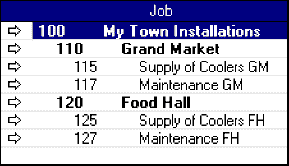
An example of job levels
In the example that follows, job 100 is the Level 1 job which summarizes all the header and detail jobs beneath it. Both job 110 and job 120 are header jobs, and each includes two detail jobs.
Job 110 and job 120 are Level 2 jobs; their detail jobs are Level 3 jobs. Notice that the header jobs are shown in boldface.
Use sub-jobs to create levels
You'll create levels in your jobs list when you make a job a component or sub-job of another larger, more comprehensive job.
To create levels, you'll enter a job number in the Sub-job Of field in the New Job - Job Information window or the Edit Job - Job Information window. After you click OK to enter the job information, the job you're creating or editing will appear one level below the job you entered in the Sub-job Of field.
Only header jobs can be entered in the Sub-job Of field. [Choosing the type of job (Detail or Header)]
Step by step