Index

Forms > Customizing forms > Task 2: Set up form properties
1
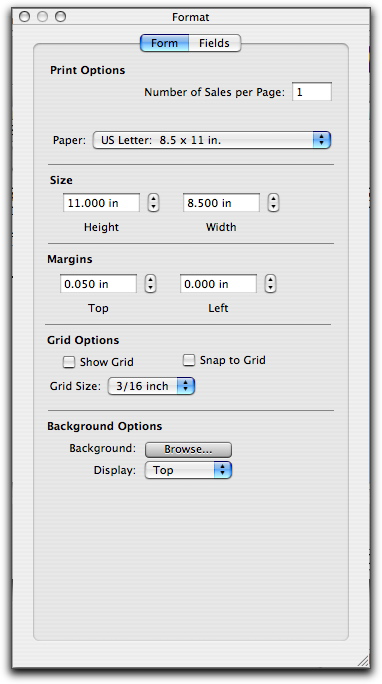
Click the Format button. The Format window appears.
2
In the Form tab, type the number of forms you want to print per page.
4
Set the size and margins for the form. Note that If you are printing four cheques per 11x17-inch page, type the width and height of a single check and not the width and height of the 11x17-inch page.
a
make the grid visible in the layout, select Show Grid. Note that the grid will not be printed.
b
align the top and left margins of fields with the closest grid lines when you are repositioning them, select Snap to Grid.
c
change the spacing between the grid lines, make a selection from the Grid Size menu.
a
Click Browse. The Open window appears.
c
Select the Display settings for the graphic.
■
Top will position the image at the top of the form.
■
centre will centre the image on the form.
■
Tile will repeat the image in a grid-like pattern across and down the entire form.
■
Stretch will enlarge the image to fill the entire form. (Depending on its size and shape, this setting can distort the image.)
Top of page