AccountEdge 2015 now has the ability to track commissions for an employee or a vendor salesperson. A Commission Rate Level is created that will charge a flat amount or percentage per item or activity and can be assigned to each salesperson. A custom rate level can also be created using both amounts and percentages for items and activities. A commission is then calculated on a sale, based on either the date of the sale or when payment is received. The commission can then be paid by cheque to a vendor or as a paycheque for an employee.
|
1
|
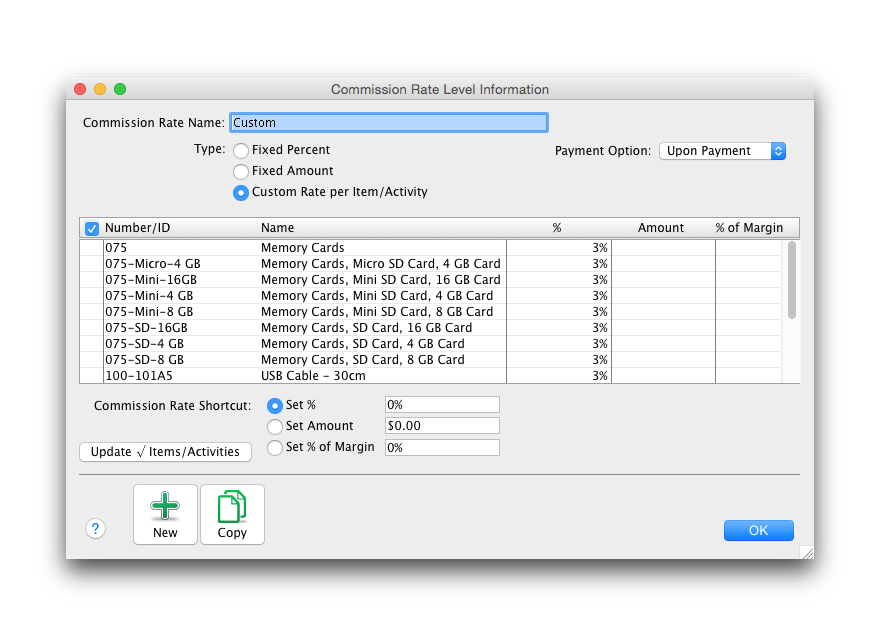
Go to the Sales & Purchases Information under the Lists menu and select Commission Rate Levels. The Commission Rate Levels window appears.
|
|
2
|
|
3
|
Enter the name, type and payment option selections. If Custom Rate per Item/Activity is selected as the type of rate, a list of items/activities will appear.
|
|
6
|
Click OK to accept the changes and close the window. The Commission Rate Levels window reappears displaying the rates you created.
|
|
1
|
|
2
|
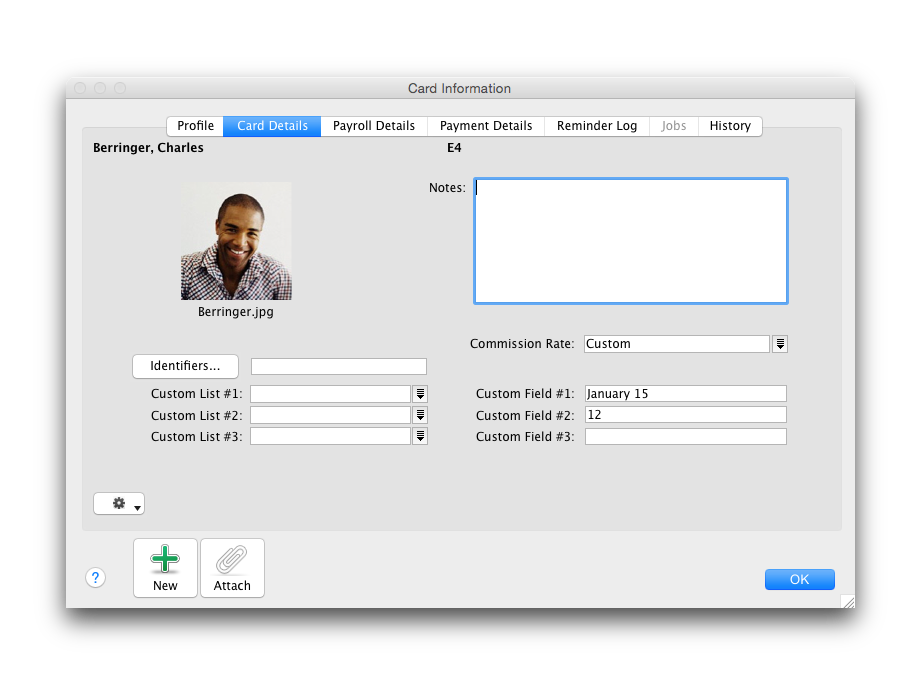
Click the Employee tab and select the employee you want to assign a commission rate to and click Edit or click New to create a new employee card. The Card Information window appears.
|
|
3
|
|
4
|
|
5
|
|
6
|
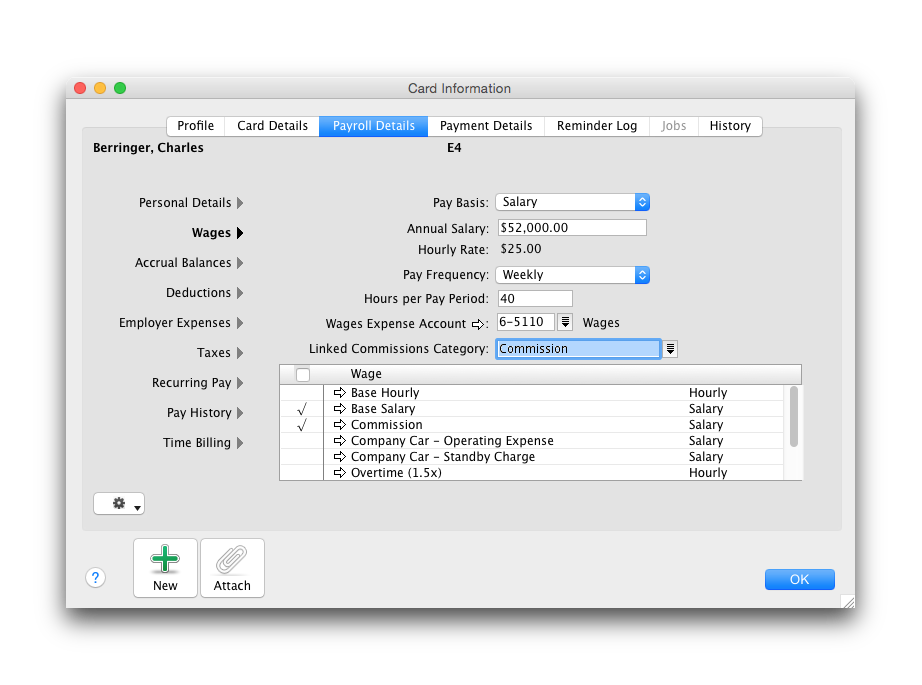
Select the Linked Commission Category from the drop down list.
|
|
7
|
Click Use Category to assign a payroll category to the employee for commissions.
|
|
8
|
Click OK to accept the changes and close the window.
|
|
9
|
To pay commissions to a vendor
|
1
|
|
2
|
Click the Vendor tab and select the vendor you want to assign a commission rate to and click Edit or click New to create a new vendor card. The Card Information window appears.
|
|
3
|
|
4
|
|
5
|
Click Commissionable Salesperson, if not already selected.
|
|
7
|
Click OK to accept the changes and close the window.
|
|
8
|
Click Close.
|
|
9
|
|
11
|
Click Record.
|
|
1
|
|
3
|
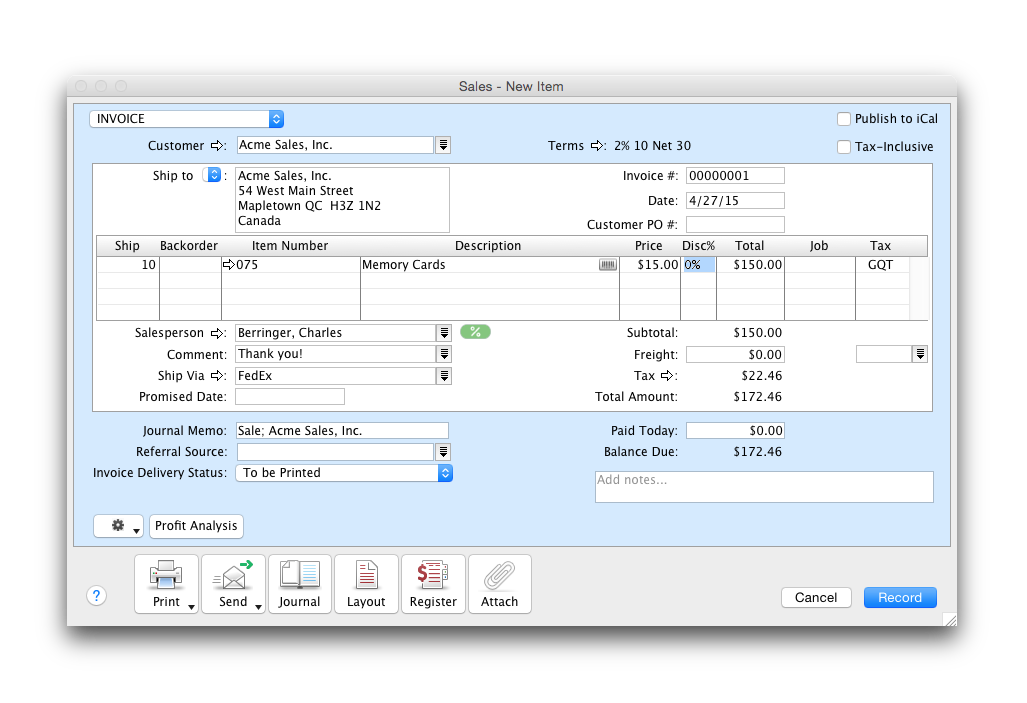
In the Salesperson, select the salesperson from the drop down menu.
|
|
4
|
Click Use Card to assign the salesperson to the sale. A percentage symbol will appear adjacent to the field.
|
|
5
|
 |
|
6
|
Click the percentage symbol to access the details of the calculated commission. The Invoice Commission Information window appears. The Commission column is the only amount that can be edited in this window. If the amount in this column is changed an asterisk will appear next to the new amount. To return to the original calculation, click the Recalc button.
|
|
7
|
Click OK to close the window.
|
|
1
|
Go to the Sales & Purchases Information under the Lists menu and select Commission Rate Levels. The Commission Rate Levels window appears.
|
|
2
|
Select the custom commission rate level you want to update then click Edit. The Commission Rate Level Information window appears.
|
|
4
|
In the Commission Rate Shortcut section, select either Set %, Set Amount or Set % Margin and enter amounts in the adjacent fields.
|
|
5
|
Click Update Item/Activities.
|
|
6
|
Click OK to accept the changes and close the window.
|
Custom Rate Level commission types can only be used for item and time billing sales. For service, professional and miscellaneous sales you can select a Flat Percentage or Amount Rate Level. While entering the sale, the commission rate level assigned to the transaction can be viewed and the amount edited without affecting the default level selected.