
Purchases > Paying bills
Paying billsIf you have recorded a purchase, you pay the supplier in the Pay Bills window. In this window you can record the payments to one or more of your outstanding bills.You can also make payments to suppliers in the Bank Register window. Paying bills through the Bank Register window can save you time if you have several purchases to pay and do not need to record detailed information (such as discounts and finance charges) for each payment.When you use the Bank Register window for making supplier payments, the entire payment is automatically allocated to the oldest purchase first. See Entering transactions in the Bank Register window.You can pay several outstanding bills at once in the To Do List window.The options for recording payments are summarized in the following diagram.
1
■ If you are paying the supplier by some other means—such as by cash, check, credit card, or Internet banking—type or select the account you are paying from in the Pay from Account field.
3 In the supplier field, type or select the supplier’s name.note : Outstanding debitsIf you have an outstanding debit with this supplier, a message may appear. You can choose to settle the debit immediately or at a later date. See Settling supplier debits.
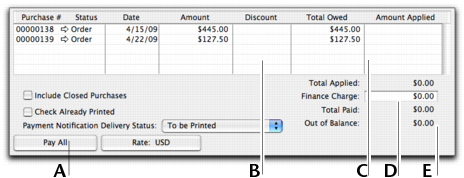
5 In the scrolling list in the bottom half of the window, indicate which bills are covered by the payment by entering amounts in the Amount Applied column.
If you are settling your account in full, click Pay All. The total payment amount appears in the Amount field and the individual payment amounts are applied to each open purchase. If you take an early-payment discount for a purchase, assign the discount to the appropriate bill in this column. Note that the software will not allow you to assign a discount to a bill that you are not settling in full. If this is the case and you want to record a discount that the supplier has given you, you can create a supplier debit. See Recording and settling supplier debits. Amount Applied Type how much of the payment you want to apply to each bill in this column. Finance Charge If part of the payment was used to pay finance charges, type the finance charge amount here. Out of Balance The amount you apply in the Amount Applied column will accumulate in the Total Applied field. The Total Paid amount must equal the amount that appears in the Amount field in the top half of the window before you can record the transaction. The Out of Balance amount must be zero before you can record the transaction.
6 If you are paying by check and have already written it, or if you are recording a transaction that doesn’t require a printed check (such as a petty-cash payment or Internet payment), select the Check Already Printed option.
7 If you want to print or email a payment notification in a batch, select an option from the Payment Notification Delivery Status list.After you have recorded a number of payments, say, the day’s payments, you can print or email a transaction batch. For more information, see Sending forms.
8 If you want to preview the payment notification or cheque for this transaction, click Print and then choose Preview Cheque or Preview Payment Notification. Note that the transaction is recorded before it is displayed.
9 If you want to print a check or payment notification now, click Print and select the form type you want to print. Note that the payment is recorded before it is printed.
10 Click Record.
1
2 Click the A/P tab. A list of all unpaid purchases appears.
3
4 note : Payment accountThe linked account for paying bills will be used for all supplier payments made from this window.
5 Click Pay Bills.
6 In the window that appears, enter a date for the selected transactions. This is the date that the transactions will be recorded in your accounts.
7

