From time to time you may need to adjust item quantities and values. For example, if your stock gets damaged, you may have to write off some of your stock or revalue it.
This section explains how to make a one-off adjustment to a single item or a few items. If you need to update the quantities of several items, see Count stock.
When making stock adjustments, you may find it useful to print the Items List Summary report. This report displays on-hand quantities and values of items in your software.
|
1
|
 |
|
|
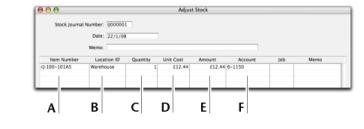
Enter the item number for the item you want to adjust. To do this, click in the Item Number column, press tab and then select the item from the list that appears.
|
|
|
If you hold stock at multiple locations, select the location where the item is stored.
This field only appears if you have more than one location. For more information, see Multiple stock locations.
|
|
|
Enter the quantity by which you want to increase or decrease the quantity held. Only enter the quantity variation.
If you enter a positive number, that number is added to your
on-hand stock. If you enter a negative number, that number is subtracted from your on-hand stock. |
|
|
The average unit cost of the item appears by default. The average cost is normally calculated as the total cost of the item divided by the number of units on hand, but if these are new items, enter their purchase cost.
|
|
|
The Amount field displays the quantity multiplied by the unit cost. If you change it, the unit cost is recalculated automatically.
|
|
|
3
|
Click Record to save the stock adjustment.
|