Lists > Setting up tax codes
Tax codes are used to track tax paid to and by your business. Each tax code represents a particular type of tax, which is used to calculate tax on your transactions.
Your software has an extensive list of tax codes that can be used in a variety of situations—for example, when doing business with overseas customers, when tracking capital acquisitions and so on.
When you create a tax code, you need to select which type of tax it is. There are three tax types you can choose from. The table below describes what each tax type is for.
|
This tax type is used for taxes that are made up of two or more tax codes or sub-taxes. You would use this code if, for example, the 8% tax rate you record on sales is the combined total of a 5% state sales tax rate and a 3% city sales tax rate. For more information see below.
|
|
|
This tax type is associated with the tax recorded on sales and purchases of goods and services.
|
You can create consolidated tax codes by combining two or more tax codes. For example, the CST tax code (with an 8.25% tax rate) is composed of CTY (City Sales Tax) at 4%, STE (State Sales Tax) at 4%, and MET (Metropolitan Tax) at 0.25%.
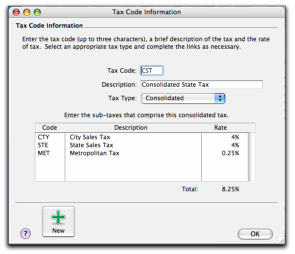
note : You can only consolidate tax codes that are in your tax code list
Make sure you first create the tax codes you want to consolidate. The rest of the fields are filled in for you and the consolidated tax rate is calculated automatically.
|
1
|
|
2
|
|
3
|
 |
|
|
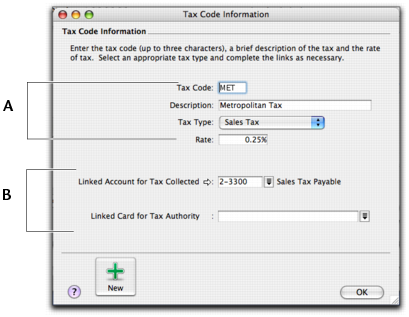
Enter a description, type, and rate. If you selected Consolidated as the Tax Type, see Consolidated tax codes.
|
|
|
If the Tax Type is Sales Tax, select the linked account for tax collected.
|
|
|
5
|
Click OK when you have finished. The new tax code you created will now appear in your tax codes list.
|
If a tax rate changes or if you wish to link a tax code to a different account, you can change the tax code information.
|
1
|
|
1
|
|
2
|