If you want to import your contacts to AccountEdge cards from the default Outlook contacts folder, type the card type for each contact in the Categories field of the General tab.
|
1
|
|
2
|
caution : Back up your company file
|
4
|
|
5
|
Select a synchronization rule from the Update Rules list.
|
|
6
|
If you want to import your Outlook contacts from the default Outlook contacts folder, click Settings. The Outlook Sync ‑ Settings window appears. If you are importing your contacts from group contact folders, go to step 7 below.
|
Select the option Import and export all AccountEdge cards to the default contacts folder and then click OK.
|
7
|
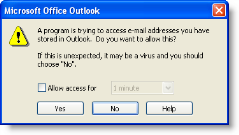
Click Import. A Microsoft warning appears.
|
|
a
|
Select Allow access for option.
|
|
b
|
|
c
|
Click Yes.
|
The import process starts and the Blank Field Warning window appears.
|
9
|
Click Continue. If you selected the Update existing contacts rule or the Do not update existing contacts rule, the Outlook Sync - Import Summary window appears. Go to step 10 below.
|
If you selected the Ask me to confirm updates rule, the Outlook Sync - Confirm Update of AccountEdge card window appears.
Select how you want to deal with each update. When you have confirmed all updates the Outlook Sync - Import Summary window appears.
|
The number of contacts you chose to skip (if you selected update rule Ask me to confirm updates) and the number of contacts that were not imported because they contained blank Outlook contact fields.
|
note : AccountEdge import log