
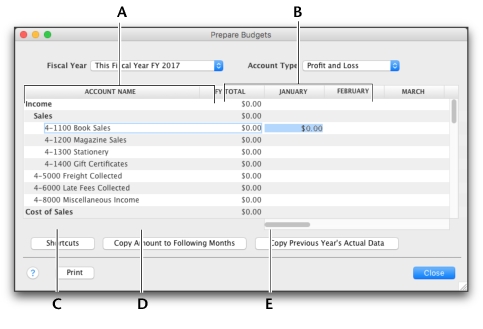
You can use the Prepare Budgets window to enter budget amounts for each month of the current or next fiscal year. If you want to quickly enter budget amounts for a group of months, you can use the Budget Shortcuts window.
By default, the amount you enter will be assumed to be a positive amount. You can enter negative budget amounts by typing a hyphen before the amount (for example, -$250). When you enter a negative amount, you are indicating that the balance of the account is going to reduce.
If you have already prepared a budget in a spreadsheet or in another software program, you can import that information into your software. For more information on how to import account budgets, see ‘Importing data’.
|
1
|
|
2
|
|
3
|
From the Fiscal Year list, choose whether you want to enter a budget for this fiscal year or the next one.
|
|
4
|
From the Account Type list, choose the type of account you want to enter a budget for—Profit and Loss or Balance Sheet.
|
As you enter data, the FY Total column will display the total budget for each account.
 |
|
|
The Account Name and FY Total columns display the list of accounts and their current budget totals for the fiscal year.
|
|
|
Click Shortcuts to open the Budget Shortcuts window from where you can quickly enter budget amounts for the selected account. For more information, see ‘Budget Shortcuts window’ below.
|
|
|
Click Copy Amount to Following Months to copy the selected amount to the months that follow.
|
|
|
Click Copy Previous Year’s Actual Data to insert the previous year’s account balances for the selected account and month.
|
|
|
6
|
|
▪
|
