AccountEdge Cloud gives your employees the flexibility to enter sales and track billable time using your PC, Mac or mobile browser. Sales and time tracked for billing are easily synced back to AccountEdge Pro.
AccountEdge Pro syncs with AccountEdge Cloud through your dropbox account. Once you setup to sync with Dropbox from AccountEdge Pro, you can sign up for a trial AccountEdge Cloud account and activate employees for access.
AccountEdge Cloud transactions that are synced to Dropbox are picked up by AccountEdge Pro the next time the user chooses to sync.
|
1
|
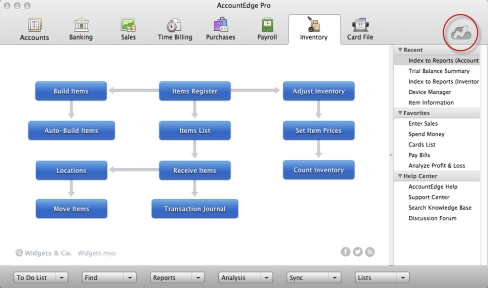
Go to the setup menu and select AccountEdge Cloud or click the AccountEdge Cloud icon in the upper right corner in any command center. The Device Manager window opens.
 |
|
2
|
Click Link To Dropbox to link your company file to your dropbox account. Once the link is successful the Dropbox Account will be referenced and an option to Sync, Unlink and Reauthorize become available.
|
note : First-time synchronization
Before you sync for the first time you will need to setup a device using the Device tab of the Device Manager.
|
3
|
Click on the Devices tab to set up the devices you will use for synchronization.
|
|
4
|
Click New to setup a device.
|
|
5
|
Enter the Device Name and select the Application you want to use with each device. You may choose from AccountEdge Mobile, AccountEdge Cloud, Rerun or Other.
|
|
6
|
Select Save.
|
|
7
|
Review the list of selections available. Select only the options in the lists you would like to sync with each device.
|
note : Sync options
When you make your selections, please be aware that when synchronization takes place, all devices will sync at the same time according to their selections.
|
8
|
|
9
|
|
1
|
Go to AccountEdge Cloud from the setup menu or click the AccountEdge Cloud icon
 in the right hand corner of any command center. The Device Manager window opens. in the right hand corner of any command center. The Device Manager window opens. |
|
2
|
|
3
|
Click on the zoom arrow before the device that you want to edit. You can also highlight the device and click Edit. The Device Information window appears.
|
If you are creating several devices with the same sync options, click Copy From. The Select From window appears for you to select the device you want to copy details from. Select the device and click Use Device to close this window.
|
5
|
|
6
|
Click Close.
|