
Index

Networking company files > Setting up a company file folder on a Mac OS X host
Setting up a company file folder on a Mac OS X host
If you choose to store your company file on a host running Mac OS X, you can run AccountEdge Plus on that host but can only open the company file in single-user mode. This means that workers on other workstations cannot access the company file at the same time.
To resolve this situation, you can store the company file on a Macintosh host computer running Mac OS X but do not run AccountEdge Plus on that host, or only run it infrequently—perhaps to print reports—when others do not need access.
To activate TCP/IP on a Mac OS X host or workstation
This procedure shows you how to activate the TCP/IP protocol on a computer and set either automatic or manual IP addressing.
The following steps may not apply to the way your LAN is set up. If so, seek the advice of your system administrator or a qualified network consultant.
1
If only administrators can set preferences on your computer, log in as an administrator.
2
Open the System Preferences and click Network. The Network window appears.
3
In the Show field, select Built-in Ethernet for a cabled network or select Airport for a wireless network, and then click the TCP/IP tab.
n
If addresses are dynamically assigned, select Using DHCP in the Configure field. In the DHCP Client ID field, type the name by which the computer is to be recognised.
n
Otherwise, select Manually in the Configure field. In the IP Address field, type the IP address, for example, 10.24.5.253.
5
If you set the address manually, in the DNS Servers text field, type the IP address of the LAN’s primary DNS server on the first line and those of any secondary DNS servers on the remaining lines. Enter only server address per line.
6
Click Apply Now. If addresses are dynamically assigned, the DHCP server dynamically assigns an IP number to the computer, and the IP Address, Subnet Mask and Router fields are updated.
To create a shared user account on a Mac OS X host
1
If only administrators can set preferences on your computer, log in as an administrator.
2
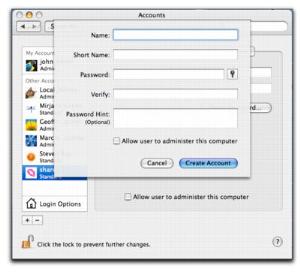
Open the System Preferences and click Accounts. The Accounts window appears.
Type share.
Type share.
5
If the user is not an administrator, deselect the Allow user to administer this computer option in the Security tab.
A new user account called share is created. The home folder of the share user is located at /Users/share and contains a folder called Public, that is, /Users/share/Public. This Public folder is where you will place new company files so that they can be accessed by any workstation on the network.
6
Close the Accounts window and Log out of the computer.
9
Go to the Finder’s File menu and choose Get Info. The Public Info window appears.
10
Expand the Ownership & Permissions section and the Details section.
11
In the Others field, select Read & Write.
To share a Public folder on a Mac OS X host
1
If only administrators can set preferences on your computer, log in as an administrator.
2
Open the System Preferences and click Sharing. The Sharing control panel appears.
3
Click the Services tab.
a
If the Network Address field is displaying an IP number (for example, 192.168.75.5), click the number to display the computer’s network name in the Computer Name field (for example, hongs-mac). If addresses are dynamically assigned, this should be the name you typed in the DHCP Client ID field in step 4 on page 323.
b
Repeat the computer’s network name (for example, hongs-mac) in the Rendezvous Name field. If both fields remained blank after clicking the Network Address field, type an identical name in both fields.
The Rendezvous name allows other computers running Mac OS X 10.3 or later, when a user chooses Connect to Server on the Go menu of the Finder, to discover each other without setting complicated networking preferences beforehand.
5
In the Select a service to change its settings field, select Personal File Sharing. The Start button changes to Stop after a pause.
6
Open the Finder and move the company file from its present location to the /Users/share/Public folder.
Top of page