
Index

Billing for time > Creating time billing invoices
In the Prepare Time Billing Invoice window. This is the recommended method, because the full details of activities and activity slips are recorded.
In the Sales window. Use this method if you don’t need to record details of activities and activity slips or track work in progress.
To create a time billing invoice using the Prepare Time Billing Invoice window
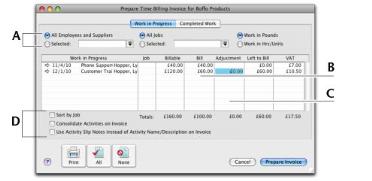
The Prepare Time Billing Invoice window allows you to enter and adjust the billing information for activity slips. As you make changes in this window, your activity slip records are updated automatically.
1
Go to the Time Billing command centre and click Prepare Time Billing Invoice. The Time Billing Customers window appears.
2
Find and select the customer for whom you want to create a time billing invoice and click OK. The Prepare Time Billing Invoice window appears, listing all the open activity slips for the selected customer.
Enter the amount or number of hours you want to bill for each activity slip here. Any activity slip with 0.00 units or £0.00 in the Left to Bill column is considered billed in full.
Print Options
consolidate all activity slips with the same activity and job number on the invoice
4
Click Prepare Invoice. The Sales - New Time Billing window appears displaying the details of the time billing invoice.
5
If you have selected the I Include Items on Time Billing Invoices option in the Preferences window, you can also enter items on this invoice. See ‘Setting time billing preferences’ on page 149.
n
n
the item number in the Activity field or press Tab and select the item from the list of items and activities that appears
6
Enter additional information about the sale, such as the salesperson, referral source and delivery.
If you want to group and subtotal the items and activities separately on the invoice, you can do so by inserting headers, blank lines and subtotals. See ‘Adding and deleting transaction lines, subtotals and headers in sales transactions’ on page 75.
n
Record the invoice. Click Record to record the invoice but print it later.
n
Print and record the invoice. Click Print and then choose the form you want to use for this invoice. For more information about printing invoices, see ‘Sending forms’ on page 243.
n
Save the invoice as a recurring template. Click Save as Recurring. Enter the necessary information about the template in the Edit Recurring Schedule window and click Save. For more information about recurring transactions, see ‘Recurring transactions’ on page 222.
You can save time billing invoices as recurring invoices, but no activity slips will be created when you use the recurring sale in the future. Recording the recurring sale won’t update the activity slips used to create the invoice in the Prepare Time Billing Invoice window.
To create a time billing invoice in the Sales window
No activity slip records will be created if you use this method to create a time billing invoice. Most time billing reports are based on activity slip records, therefore, if you want to print time billing reports, you should create activity slips and then use the Prepare Time Billing Invoice window to create the invoice.
1
Go to the Sales command centre and click Enter Sales. The Sales window appears.
2
In the Customer field, type or select the customer to invoice.
3
Click Layout. The Select Layout window appears.
4
Select the Time Billing layout and then click OK.
n
the activity name or press Tab in the Activity field and select the required activity from the list
n
[optional] the category. The category field is displayed only if the Turn on Category Tracking option has been selected in the System tab of the Preferences window.
n
n
the item number in the Activity field or press Tab and select the item from the list of items and activities that appears
6
Enter additional information about the sale, such as the salesperson, referral source and comments.
n
Record the invoice. To record the invoice without printing it, click Record.
n
Print and record the invoice. To print and record the invoice, click Print and then choose the form you want to use for this invoice. For more information about printing invoices, see ‘Sending forms’ on page 243.
n
Save the invoice as a recurring transaction. You can save the invoice as a recurring transaction so that you can use it again in the future. Click Save as Recurring. Enter the necessary information about the template in the Edit Recurring Schedule window and click Save. For more information about recurring transactions, see ‘Recurring transactions’ on page 222.
You can save time billing invoices as recurring invoices, but no activity slips will be created when you use the recurring sale in the future. Also, recording the recurring sale will not update the activity slips you used to create the invoice in the Prepare Time Billing Invoice window.
Top of page