To add elements to a form
Reports and forms > Using forms > Customizing forms > To customize a form > To add elements to a form
The Customize window for the form you want to modify should be displayed. See To customize a form for instructions.
Note: You can't add new or different data fields to a form
Only those fields that are available for each form can be used on it. You cannot create new data fields for any form. Similarly, you will not be able to copy data fields from one form to another unless the fields that you want to copy are available on both forms.
You can add any of the following elements to your form: Text, pictures, rectangles, lines.
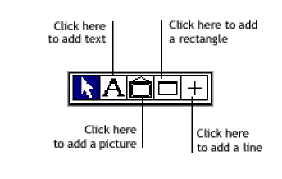
- Click on the tool you want, as shown above.
- If you're adding a rectangle or line, click the location where you want the element to appear, then press the mouse button and drag until the rectangle or line is approximately the size you want it to be. If you'd like to modify the element, go on to the next step; if you're happy with it, you're done!
If you're adding text or a picture, click the location where you want the element to appear. A field will appear where you clicked.
- Double-click the element you just added. The Field Information window appears.
- Using the Field Information window, you can precisely position to the element you've created and change other attributes, such as the font and size for text, and the thickness of lines and rectangles.
If you're adding text, be sure to type the text you want in the Text field.
If you're adding a picture, click the Load Picture button, then use the dialog box that appears to choose the PICT image you want to use. Or, using whatever graphics program you normally use, copy the graphic to the Clipboard; then, in the Field Information window, click the Paste Picture button.
- Click OK.
Related topics
To change or move elements on a form
To copy elements on a form
To remove elements from a form
Copyright 2002 MYOB Limited